 by
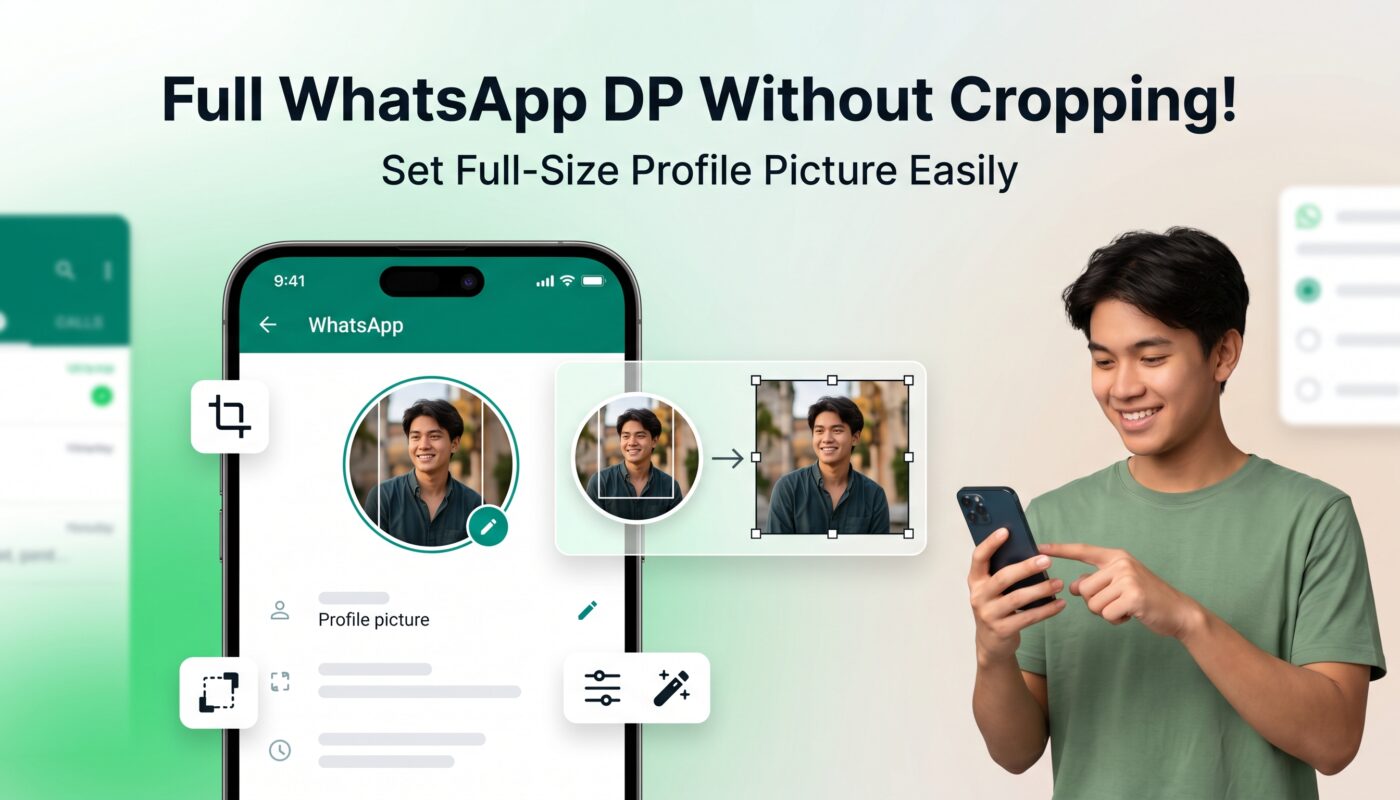
by WhatsApp, by default, forces a square crop on your profile picture, which means a large part of your photo gets cut off. Whatscropping is a free app that solves this problem by letting you set your full photo as your WhatsApp profile picture without any cropping or cutting.
Here is everything you need to know about how it works and how to use it.
What Is Whatscropping?
WhatsApp cropping is a third-party Android app that bypasses WhatsApp’s built-in square-cropping restriction. When you normally try to set a profile picture on WhatsApp, the app forces you to crop it into a square before uploading. WhatsApp’s cropping works around this by resizing and padding your image in a way that tricks WhatsApp into accepting the full photo without cutting any part of it.
The result is that your full rectangular or portrait photo appears on your profile without any edges being cut off.
Is Whatscropping Safe to Use?
Whatscropping is a widely used app and has been downloaded by millions of users. It does not require your WhatsApp password or any sensitive account information. It simply helps you resize and format your image before you upload it to WhatsApp yourself.
However, since it is a third-party app and not officially affiliated with WhatsApp or Meta, use it with reasonable caution. Download it only from the official Google Play Store to avoid fake or modified versions.
How to Download Whatscropping
Open the Google Play Store on your Android phone and search for Whatscropping. The app is free to download and install. Look for the app with the official icon and verify it has a large number of downloads and positive reviews before installing.
At the time of writing,g Whatscropping is primarily available for Android. iPhone users have limited options with this specific app, but can use similar workarounds through other apps mentioned later in this guide.
How to Set a Full-Sized WhatsApp Profile Picture Using Whatscropping
Follow these steps one by one, and your full photo will be set as your WhatsApp profile picture without any cropping.
Step 1: Open the Whatscropping App
After installing the app, open it on your phone. You will see a simple and clean interface with options to select your photo and adjust settings.
Step 2: Select Your Photo
Tap the option to select a photo from your gallery. Choose the picture you want to set as your WhatsApp profile picture. This can be any photo — portrait, landscape, or square.
Step 3: Adjust the Image
The app will show you a preview of how your image will look. You can zoom in or out and position the image exactly how you want it to appear. The app adds white or blurred padding around the edges of your photo so the full image fits within WhatsApp’s required dimensions without anything being cut off.
Some versions of the app also let you choose the background colour or a blur effect behind your image if your photo does not fill the frame naturally.
Step 4: Save the Processed Image
Once you are happy with the preview, tap the save or export button. The app will save the processed image to your phone’s gallery or a dedicated folder.
Step 5: Open WhatsApp and Set the Profile Picture
Now open WhatsApp on your phone. Go to Settings by tapping the three dots in the top right corner. Tap your profile name or profile picture area at the top. Tap the camera icon or Edit option on your profile picture. Select the processed image that Whatscropping saved to your gallery. WhatsApp will show you the cropping screen,n but since the image is already formatted correctly, zoom out as much as possible and confirm. Your full-sized photo will now be set as your profile picture.
Tips for the Best Results
Use a high-resolution photo for the best-quality output. Low-resolution images can look pixelated after processing, especially on larger screens.
If you want a clean look without visible padding, use a photo that is already close to square. Portrait photos work best because WhatsApp profile pictures are viewed in a circular frame, and portrait orientation fills that frame more naturally.
If the white padding around your image looks too obvious, try selecting the blur background option in Whatscropping instead. This uses a blurred version of your own photo as the background which looks much more natural and professional.
Alternative Apps That Do the Same Thing
If Whatscropping does not work properly on your device or you want to try other options, here are some alternatives that do the same job.
Full Size Profile Picture for WhatsApp is another Android app available on the Play Store that works very similarly to Whatscropping.
Canva is a free design app where you can manually create a square canvas, place your full photo in the centre, and add a matching background colour or blur around the edges. This gives you more creative control over the final result.
PicsArt allows you to do the same thing with its background fill and expand tools. Select your photo, change the canvas to a square, and use the background fill feature to complete the image.
Snapseed ianother free photo-editinggg app where you can expand your canvas to a square and creatively fill the background before uploading to WhatsApp.
Does This Work on iPhone?
WhatsApp on iPhone has the same cropping restriction. Still, Whatscropping isprimarily an Android app. iPhone users can achieve the same result using Canva, PicsArt, or the built-in Photos app to manually create a square version of their photo with padding before uploading it to WhatsApp.
Simply open Canva on your iPhone, create a new design with a square format, drag your photo onto the canvas, resize it so the full image is visible, add a background, and download the result. Then upload that image to WhatsApp as your profile picture.
Why Does WhatsApp Crop Profile Pictures?
WhatsApp forces a square crop because profile pictures are displayed in circular frames throughout the app — in chat lists, inside conversations, and in group chats. A square source image maps cleanly onto a circle. The platform standardised this format to maintain visual consistency across all users and devices.
WhatsApp cropping works around fitting the photo into the format, so when WhatsApp crops it to a circle, your entire original photo remains visible rather than having the edges cut off.

Final Thoughts
Whatscropping is a simple, free, and effective solution for anyone who wants to show their full photo on WhatsApp without the annoying square crop. The process takes less than two minutes once you have the app installed, and the results look great.